
Assignments
Manage work distribution across your team by assigning assets and shots to team members, tracking progress through workflow statuses, and receiving notifications for assignment updates.
Overview
The Assignments feature enables supervisors to distribute work to their team members and track progress through a clear workflow. Key capabilities include:
- Assign work to team members for assets, shots, and shot media (firstframe, sound, video)
- Track progress through workflow statuses from "Not Started" to "Approved"
- View your assignments across projects, filtered based on your role
- Receive notifications when assignments are created, updated, or need review
- Manage all assignments through the Assignment Manager (supervisors only)
Who Can Use This Feature
| Role | View Own Assignments | View Team Assignments | Assign Work | Manage Assignments |
|---|---|---|---|---|
| Artist | Yes | No | No | No |
| Writer | Yes | No | No | No |
| Artist Supervisor | Yes | All artist assignments | Yes (to artists) | Yes |
| Writer Supervisor | Yes | All writer assignments | Yes (to writers) | Yes |
| Admin | Yes | All assignments | Yes | Yes |
Your Assignments Across Projects
From your home dashboard, the Pending Reviews link opens a combined assignments view showing all work assigned to you or your team members across every project.
Assignment Columns
| Column | Description |
|---|---|
| Resource | The asset or shot name with an icon indicating the type. Click to navigate to the editor. |
| Project | The project this assignment belongs to. Click to navigate to the project. |
| Type | The type of resource (asset or shot) |
| Task | The kind of work (for example, first frame, sound, or video) |
| Status | Current workflow status (see Workflow Statuses below) |
| Priority | Assignment priority level (Low, Medium, High, Urgent) |
| Due | Target completion date if set |
| Assignee | The assigned team member |
| Last Comment | When the most recent comment was added |
What You See Based on Your Role
The assignments you see depend on your role in the organization:
| Role | Visible Assignments |
|---|---|
| Artist or Writer | Only assignments where you are the assignee |
| Artist Supervisor | All assignments for artist-related work across your projects |
| Writer Supervisor | All assignments for writer-related work across your projects |
| Admin | All assignments across all projects |
Workflow Statuses
Assignments progress through a defined workflow that tracks the state of work:
| Status | Description | Color |
|---|---|---|
| Not Started | Work has not begun on this assignment | Gray |
| In Progress | The assignee is actively working on this assignment | Blue |
| Ready for Review | Work is complete and waiting for supervisor review | Purple |
| Changes Requested | Supervisor has requested modifications | Orange |
| Approved | Work has been approved by the supervisor | Green |
| Cancelled | Assignment has been cancelled | Red |
Workflow Progression
Not Started → In Progress → Ready for Review → Approved
                    ↑              ↓
                    └── Changes Requested
- Not Started: Default status when an assignment is created
- In Progress: Assignee begins working on the asset or shot
- Ready for Review: Assignee submits work for supervisor approval
- Changes Requested: Supervisor reviews and requests modifications (returns to In Progress)
- Approved: Supervisor approves the final work
Notifications
Stay informed about assignment updates through the notification system. Click the bell icon in the header to open the Notifications panel. The bell shows a badge with your count of unread notifications.
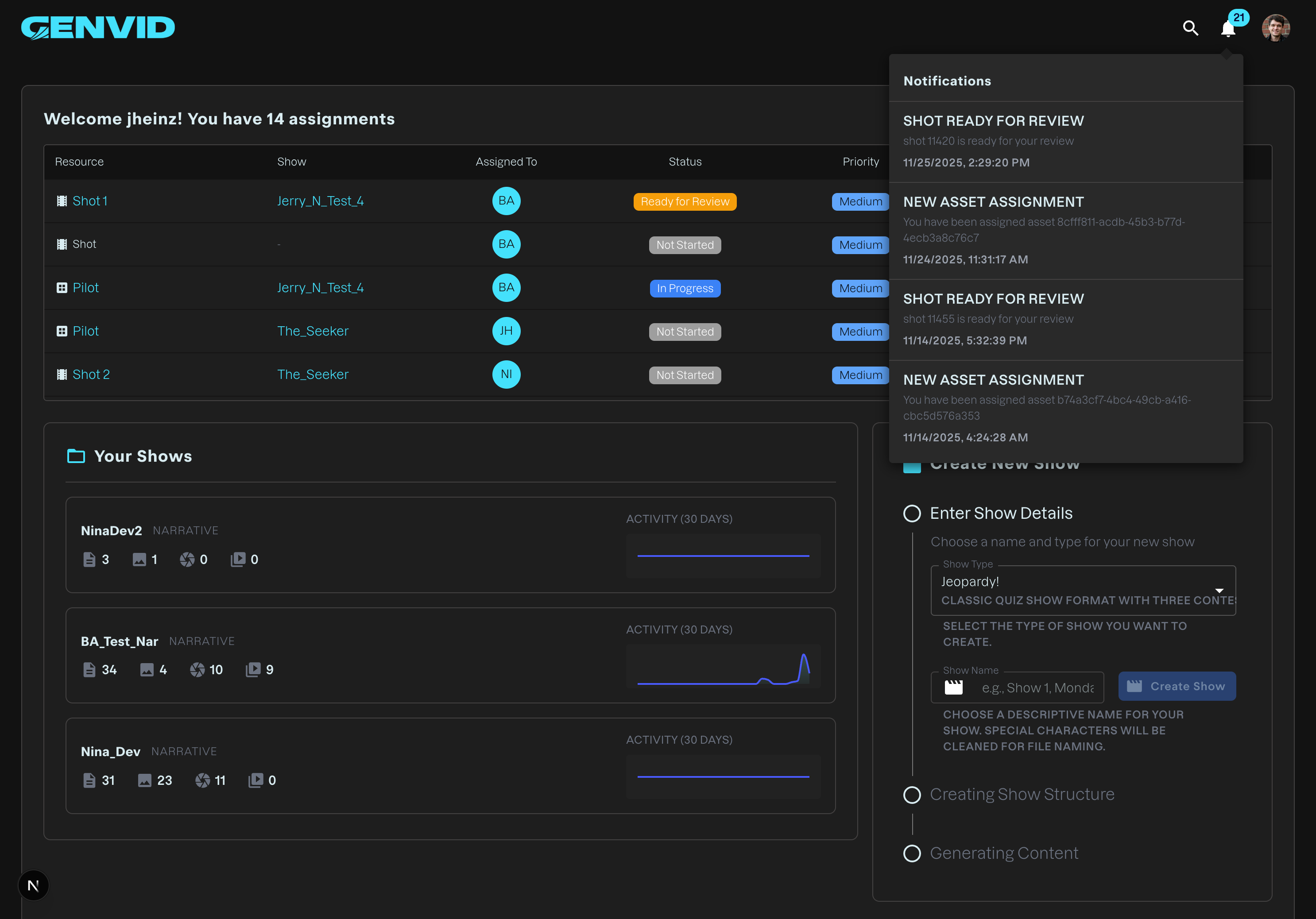
Each entry in the panel shows a title, a short description, and a timestamp. Click an entry to go directly to the relevant asset, shot, or task.
Notification Types
Notifications are generated when work needs your attention. Common examples you'll see when work is submitted for review include:
| Notification | Meaning |
|---|---|
| Asset Ready for Review | An asset has been submitted for review |
| Shot Ready for Review | A shot has been submitted for review |
| Task Ready for Review | A task has been submitted for review |
Managing Notifications
- View notifications: Click the bell icon to open the Notifications panel
- Notification badge: Displays the count of unread notifications
- Click to navigate: Click any notification to go directly to the relevant asset, shot, or task
Assignment Manager
Supervisors and admins can access the Assignment Manager to view and manage all assignments within a project. This dedicated page provides comprehensive control over work distribution.
Accessing the Assignment Manager
- Navigate to a project
- Open the Team & Assignments section, either from the breadcrumb section menu at the top of the page or from Project Hub → Project Sections → Team & Assignments
- The page opens with the heading Assignment Manager and the subtitle "Manage assignments for assets and shots in this project"
Assignment Manager Features
The Assignment Manager has two tabs:
- Assets (N) — every asset in the project
- Shots (N) — every shot in the project
The number in each tab reflects how many items it contains. Each tab shows a grid with these columns:
| Column | Description |
|---|---|
| (selection) | Checkbox for selecting rows |
| Asset Name | The asset or shot name |
| Assignee | The team member the work is assigned to |
| Status | Current workflow status (see Workflow Statuses above) |
| Comments | A count button showing how many comments the item has |
| Priority | Assignment priority level (Low, Medium, High, Urgent) |
| Due Date | Target completion date if set |
Above the grid, a toolbar offers Select columns, Filters, and Density controls to customize the view.
Managing Assignments
From the Assignment Manager, supervisors can:
| Action | How To |
|---|---|
| Assign work | Click the assignee field and select a team member |
| Change status | Click the status field and select a new status |
| Set priority | Click the priority field and select Low, Medium, High, or Urgent |
| Set due date | Click the due date field and select a date |
How Assignments Work
Who Can Edit Assigned Work
Once work is assigned, only specific users can make edits:
| User | Can Edit? |
|---|---|
| The assignee | Yes - can edit the asset/shot they're assigned to |
| The supervisor | Yes - can edit any asset/shot in their domain |
| Other team members | No - view only |
Assignment Rules
- Only supervisors and admins can assign work
- Each entity has one assignee - no multiple assignees per asset/shot
- Assignees can only edit their own work - other team members have view-only access
- Supervisors can edit any work in their domain (artist or writer)
- Admins can edit all work across the organization
Common Workflows
Assigning Work to a Team Member
- Open the project's Assignment Manager from the Team & Assignments section
- Find the asset or shot in the table
- Click the assignee field
- Select the team member from the dropdown
- Optionally set priority and due date
- The team member receives a notification of the new assignment
Submitting Work for Review
- Complete your work on the assigned asset or shot
- Change the status to Ready for Review
- Your supervisor receives a notification
- Wait for supervisor feedback
Reviewing Submitted Work (Supervisor)
- Receive notification that work is ready for review
- Navigate to the asset or shot
- Review the work quality
- Either:
- Approve: Change status to "Approved"
- Request changes: Change status to "Changes Requested" and provide feedback
- The assignee is notified of your decision
Handling Change Requests
- Receive notification of changes requested
- Navigate to the asset or shot
- Review the supervisor's feedback
- Make the requested modifications
- Change status back to Ready for Review
- Supervisor is notified again
Troubleshooting
Can't see assignments on the dashboard
Cause: You don't have the appropriate role or no work is assigned to you.
Solution:
- Check your role with an admin
- If you're a supervisor, ensure you have Artist Supervisor or Writer Supervisor role
- Confirm work has been assigned in the projects you have access to
Can't edit an asset or shot
Cause: You're not the assignee or don't have supervisor privileges.
Solution:
- Check if the work is assigned to you
- If you need to edit someone else's work, ask a supervisor to reassign it to you
- If you're a supervisor, you should have edit access to all work in your domain
Not receiving notifications
Cause: No recent assignment events, or the notifications have already been read.
Solution:
- Click the bell icon to open the Notifications panel and check for recent entries
- New notifications appear when assignment events occur
Can't find the Assignment Manager
Cause: You don't have supervisor or admin privileges.
Solution:
- The Assignment Manager is available from the Team & Assignments section and only to supervisors and admins
- Contact an admin to request appropriate role assignment
Related Features
- Project Dashboard - Overview of project progress and metrics
- User Management - Managing roles and team members
- Image Editor - Working with asset images
- Video Editor - Working with shot videos
Summary
The Assignments feature provides comprehensive work management capabilities:
- Cross-project view displays your assignments filtered by your role
- Six workflow statuses track progress from start to approval
- Notifications keep you informed of assignment updates
- Assignment Manager gives supervisors full control over work distribution
- Permission system ensures only authorized users can edit work
Use assignments to organize your team's work, track progress, and maintain clear communication between team members and supervisors.